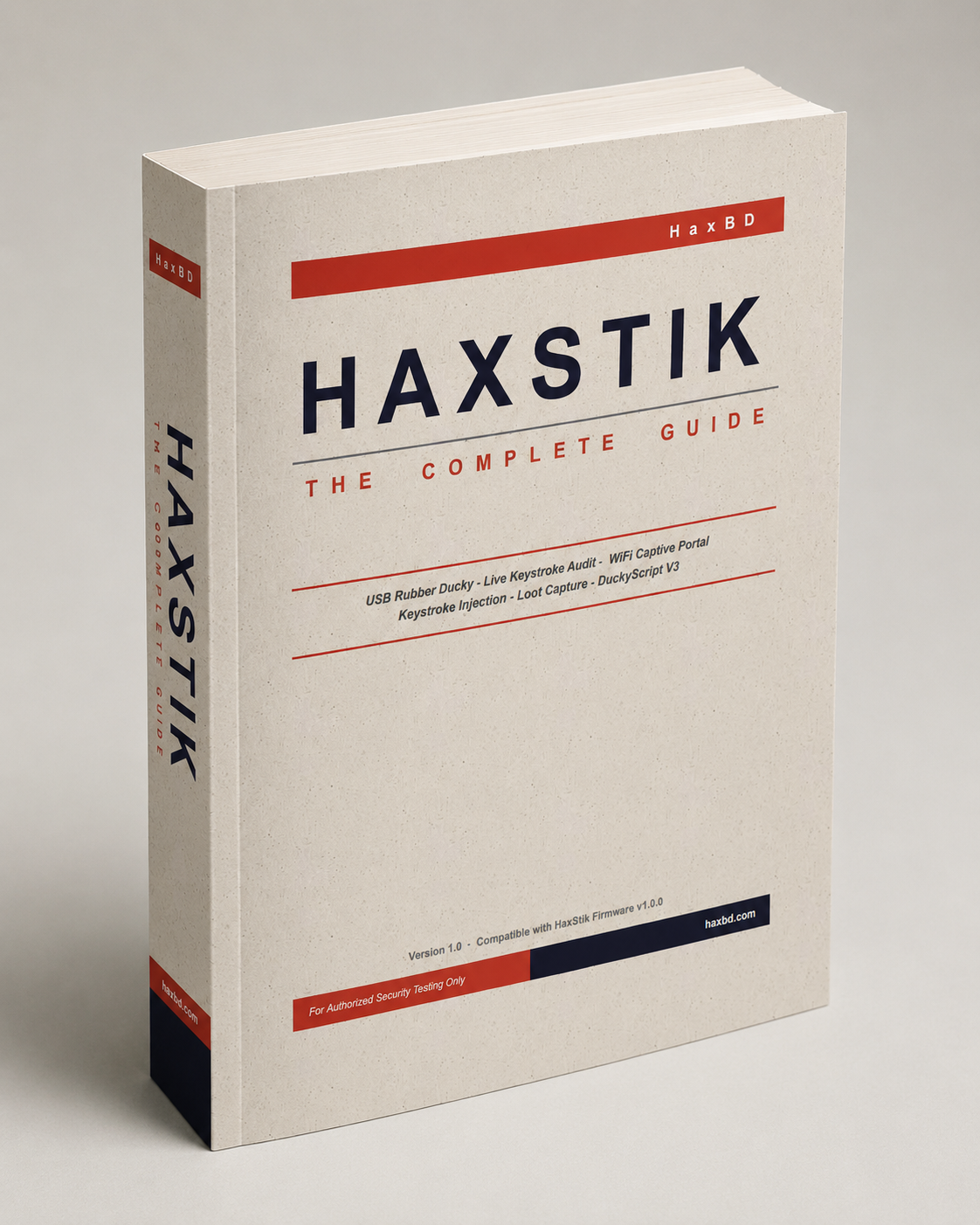
The authoritative field manual for HΛX•STIK operators. A comprehensive deep-dive into the ESP32-S3 hardware architecture, secure management of the onboard HΛXSTIK OS, advanced DuckyScript payload engineering, and professional-grade auditing techniques. All features are documented for authorized security research and penetration testing purposes only.
HΛX•STIK অপারেটরদের জন্য সম্পূর্ণ ফিল্ড ম্যানুয়াল। ESP32-S3 হার্ডওয়্যার আর্কিটেকচার, HΛXSTIK OS ড্যাশবোর্ড পরিচালনা, উন্নত DuckyScript পেলোড তৈরি এবং প্রফেশনাল পেনিট্রেশন টেস্টিং কৌশলের বিস্তারিত গাইড। সকল ফিচার শুধুমাত্র অনুমোদিত সিকিউরিটি রিসার্চ ও পেনিট্রেশন টেস্টিংয়ের জন্য।
⚠ LEGAL NOTICE: The HΛX•STIK is a professional penetration testing tool. All features described in this manual must only be used on systems you own or have received explicit written authorization to test. Unauthorized use against third-party systems is illegal under computer crime laws in most jurisdictions. HAXBD assumes no liability for misuse.
⚠ আইনি নোটিশ: HΛX•STIK একটি প্রফেশনাল পেনিট্রেশন টেস্টিং টুল। এই ম্যানুয়ালের সকল ফিচার শুধুমাত্র এমন সিস্টেমে ব্যবহার করুন যেটি আপনার নিজের বা যেখানে আপনার স্পষ্ট লিখিত অনুমতি আছে। তৃতীয় পক্ষের সিস্টেমে বিনা অনুমতিতে ব্যবহার অধিকাংশ দেশে কম্পিউটার ক্রাইম আইনে অবৈধ। HAXBD কোনো অপব্যবহারের দায় নেয় না।
The HΛX•STIK is built on the ESP32-S3 SuperMini architecture — a Dual-core Xtensa LX7 processor running at 240 MHz with 1.125MB of onboard SPIFFS Flash memory and a dedicated USB 2.0 Full-Speed hardware controller.
HΛX•STIK টি ESP32-S3 SuperMini আর্কিটেকচারে নির্মিত — ২৪০ MHz-এ চলা Dual-core Xtensa LX7 প্রসেসর, ১.১২৫MB SPIFFS Flash মেমোরি এবং একটি ডেডিকেটেড USB 2.0 Full-Speed হার্ডওয়্যার কন্ট্রোলার সহ।
Unlike traditional flash drives, it operates in dual-mode (Hardware CDC + HID). It appears to the authorized test computer simultaneously as a USB HID Keyboard & Mouse (for keystroke injection) and as a Serial Communications Port (for receiving approved audit data back from the test system). This lets teams validate how USB control policies and endpoint defenses handle physical-device risk.
সাধারণ ফ্ল্যাশ ড্রাইভের মতো নয়, এটি dual-mode (Hardware CDC + HID)-এ কাজ করে। টার্গেট কম্পিউটার একসাথে এটিকে একটি বিশ্বস্ত HID Keyboard & Mouse (keystroke injection-এর জন্য) এবং একটি Serial Communications Port (ডেটা সংগ্রহের জন্য) হিসেবে দেখে। এই হার্ডওয়্যার-লেভেলের পরিচয়ে EDR (Endpoint Detection & Response) সিস্টেম এটিকে একটি স্বীকৃত বিশ্বস্ত পেরিফেরাল হিসেবে চেনে।
To write payloads, deploy scripts, and view captured data, you must access the HΛXSTIK OS web dashboard.
পেলোড লেখা, স্ক্রিপ্ট চালানো এবং ক্যাপচার করা ডেটা দেখতে HΛXSTIK OS ওয়েব ড্যাশবোর্ডে ঢুকতে হবে।
Once connected, open any web browser and navigate to http://192.168.4.1. The HΛXSTIK OS splash screen will load.
কানেক্ট হলে যেকোনো ব্রাউজার খুলে http://192.168.4.1-এ যান। HΛXSTIK OS স্প্ল্যাশ স্ক্রিন লোড হবে।
Click the "START SYSTEM" button on the splash screen to reveal the secure login modal. Enter your credentials:
স্প্ল্যাশ স্ক্রিনে "START SYSTEM" বাটনে ক্লিক করুন — নিরাপদ লগইন উইন্ডো আসবে। ক্রেডেনশিয়াল দিন:
⚠ CRITICAL — CHANGE DEFAULT CREDENTIALS IMMEDIATELY. The default Wi-Fi password and login are public knowledge. Anyone who knows your Wi-Fi password can access the control panel. Update both from the Settings tab before any field deployment. If you forget the new login, a Factory Reset (Format Disk) is the only recovery option.
⚠ জরুরি — ডিফল্ট ক্রেডেনশিয়াল এখনই বদলান। ডিফল্ট WiFi পাসওয়ার্ড এবং লগইন সবার জানা। যে কেউ আপনার WiFi পাসওয়ার্ড জানলে কন্ট্রোল প্যানেলে ঢুকতে পারবে। মাঠে নামার আগেই Settings ট্যাব থেকে দুটোই আপডেট করুন। নতুন লগইন ভুলে গেলে Factory Reset (Format Disk) ছাড়া উপায় নেই।
Each time the device boots, the OS generates a new random 32-character session token. This means sessions do not persist across reboots — you must log in again after each power cycle. This is a deliberate security feature: if someone else unplugs and replug the stick, your old browser session is immediately invalidated.
প্রতিবার ডিভাইস বুট হলে OS একটি নতুন র্যান্ডম ৩২-অক্ষরের সেশন টোকেন তৈরি করে। মানে রিবুটের পর সেশন থাকে না — প্রতিটি পাওয়ার সাইকেলের পর আবার লগইন করতে হবে। এটি ইচ্ছাকৃত সিকিউরিটি ফিচার: কেউ স্টিক আনপ্লাগ ও রিপ্লাগ করলে আপনার পুরনো ব্রাউজার সেশন সাথে সাথে বাতিল হয়।
When the Captive Portal is armed, the main URL 192.168.4.1 serves the awareness-test login page to test clients. To access your operator dashboard, always use the reserved admin path: http://192.168.4.1/admin
Captive Portal চালু থাকলে মূল URL 192.168.4.1 শিকারদের ফিশিং পেজ দেখায়। অপারেটর ড্যাশবোর্ডে ঢুকতে সবসময় রিজার্ভড অ্যাডমিন পাথ ব্যবহার করুন: http://192.168.4.1/admin
Follow these steps in order on your very first use. Each step unlocks the next. Skip one and the next will not work. After completing this once, these settings persist across reboots — you only need to do it once per device.
প্রথম ব্যবহারে এই ধাপগুলো ক্রমানুসারে অনুসরণ করুন। প্রতিটি ধাপ পরেরটি unlock করে। একটি বাদ দিলে পরেরটি কাজ করবে না। একবার সম্পন্ন করলে এই সেটিং reboot-এ টিকে থাকে — প্রতিটি ডিভাইসে শুধু একবার করতে হয়।
Plug in & Connect to HAXSTIK_OS WiFi
Plug the stick into any USB port. Wait 3s for the system to boot. On your phone → WiFi settings → connect to HAXSTIK_OS / password password123. Open browser → http://192.168.4.1 → START SYSTEM → login (admin / haxstik).
স্টিক যেকোনো USB port-এ প্লাগ করুন। সিস্টেম বুটের জন্য ৩ সেকেন্ড অপেক্ষা করুন। ফোনে → WiFi settings → HAXSTIK_OS / password password123 দিয়ে সংযুক্ত হন। Browser খুলুন → http://192.168.4.1 → START SYSTEM → login (admin / haxstik)।
⚠ Change Default Credentials (MANDATORY)
Settings → WiFi Configuration: Change SSID + password (min 8 chars) → SAVE. Device reboots. Reconnect with new WiFi name.
Settings → Access Control: Change dashboard username + password → UPDATE CREDENTIALS. Do this before any field deployment — defaults are publicly known.
Settings → WiFi Configuration: SSID + password (কমপক্ষে ৮ অক্ষর) পরিবর্তন করুন → SAVE। ডিভাইস reboot হবে। নতুন WiFi নামে পুনরায় সংযুক্ত হন।
Settings → Access Control: Dashboard username + password পরিবর্তন করুন → UPDATE CREDENTIALS। মাঠে নামার আগেই এটি করুন — ডিফল্ট সবার জানা।
Spoof USB Identity (Optional but Recommended)
Settings → USB Identity: Select a profile that matches your target environment (e.g., Dell KB216 for Dell offices, Apple Magic Keyboard for Mac environments) → APPLY & REBOOT. This makes the device appear as a legitimate brand keyboard to USB security policies.
Settings → USB Identity: Target পরিবেশের সাথে মেলে এমন profile বেছে নিন (যেমন, Dell অফিসের জন্য Dell KB216, Mac পরিবেশের জন্য Apple Magic Keyboard) → APPLY & REBOOT। এতে USB security policy-র কাছে ডিভাইস একটি বৈধ ব্র্যান্ডের keyboard হিসেবে দেখাবে।
Run OS Fingerprint on the Target
Tools → OS Fingerprint → SCAN HOST OS. Plug the device into the target computer while your phone is on the dashboard. Result shows in the status bar (Windows / Linux / Mac). Write payloads for that OS only — cross-OS payloads fail silently and waste your window.
Tools → OS Fingerprint → SCAN HOST OS। ফোনে dashboard খোলা রেখে ডিভাইস target কম্পিউটারে প্লাগ করুন। ফলাফল status bar-এ দেখাবে (Windows / Linux / Mac)। শুধু সেই OS-এর জন্য payload লিখুন — cross-OS payload নীরবে ব্যর্থ হয় এবং সুযোগ নষ্ট করে।
Set Injection Speed
Settings → Global Injection Speed. Start with Fast (30ms) — the default. If your payload types missing or scrambled characters on the target, increase to 50ms or 100ms. Older hardware and systems under load need more time between keystrokes.
Settings → Global Injection Speed। Fast (30ms) দিয়ে শুরু করুন — এটি ডিফল্ট। Target-এ payload টাইপ করার সময় অক্ষর বাদ পড়লে বা এলোমেলো হলে 50ms বা 100ms-এ বাড়ান। পুরনো হার্ডওয়্যার এবং লোডের অধীনে সিস্টেমে keystroke-এর মাঝে বেশি সময় লাগে।
Write or Upload a Payload
Payload Studio tab: Select the correct OS tab (WIN / MAC / LINUX / DROID), write your DuckyScript, enter a filename (e.g., grab.txt), click SAVE / UPDATE. It appears instantly in the Dashboard payload list.
Payload Studio ট্যাব: সঠিক OS ট্যাব বেছে নিন (WIN / MAC / LINUX / DROID), DuckyScript লিখুন, filename দিন (যেমন grab.txt), SAVE / UPDATE ক্লিক করুন। Dashboard-এর payload তালিকায় সাথে সাথে দেখাবে।
Enable Mouse Jiggler (for long sessions)
Tools → Mouse Jiggler → ENABLE. Do this before running any payload that takes more than a minute, or before leaving the keylogger armed. It prevents the target from screen-locking and breaking your session.
Tools → Mouse Jiggler → ENABLE। এক মিনিটের বেশি সময়ের payload চালানোর আগে বা keylogger armed রেখে যাওয়ার আগে এটি করুন। এটি target-কে স্ক্রিন-লক হওয়া থেকে বিরত রাখে এবং আপনার session অক্ষুণ্ণ রাখে।
(Optional) Set Up Telegram for Remote Audit Visibility
Settings → Network Settings: Connect to a 2.4GHz internet WiFi. Then Settings → Telegram Settings: enter bot token + chat ID → SAVE → TEST PING. Then Tools → Telegram Audit Forwarding → FORWARDING ON. Authorized credential-awareness results or keylog bursts can arrive on your phone during controlled assessments.
Settings → Network Settings: 2.4GHz ইন্টারনেট WiFi-এ সংযুক্ত হন। তারপর Settings → Telegram Settings: bot token + chat ID দিন → SAVE → TEST PING। তারপর Tools → Telegram Exfil → EXFIL ON। এখন প্রতিটি captured credential বা keylog burst সাথে সাথে আপনার ফোনে আসবে — পরের বিল্ডিং থেকেও।
(Optional) Configure Boot Script for Autonomous Deployment
Tools → Boot Configuration: Select a payload → SET AS BOOT SCRIPT. Set Boot Delay to 3–5s → SET BOOT DELAY. From this point, plugging the device into any computer automatically runs the payload — no phone needed. Perfect for drop-and-go scenarios.
Tools → Boot Configuration: payload বেছে নিন → SET AS BOOT SCRIPT। Boot Delay ৩–৫ সেকেন্ড দিন → SET BOOT DELAY। এখন থেকে যেকোনো কম্পিউটারে প্লাগ করলে স্বয়ংক্রিয়ভাবে payload চলবে — কোনো ফোন লাগবে না। Drop-and-go পরিস্থিতির জন্য আদর্শ।
The Dashboard is the central command hub. It provides a real-time overview of all .txt DuckyScript payloads stored in the device's SPIFFS flash memory.
Dashboard হল কেন্দ্রীয় কমান্ড হাব। ডিভাইসের SPIFFS ফ্ল্যাশ মেমোরিতে সংরক্ষিত সকল .txt DuckyScript পেলোডের রিয়েল-টাইম ওভারভিউ এখানে পাওয়া যায়।
Immediately below the navigation tabs, a sticky status bar displays real-time system indicators — always visible while you work:
Navigation ট্যাবের ঠিক নিচে একটি sticky status bar রিয়েল-টাইম সিস্টেম indicator দেখায় — কাজের সময় সবসময় দৃশ্যমান:
🛑 EMERGENCY STOP: Your ultimate operational failsafe. Clicking this immediately aborts any active payload execution, flushes the command queue, and forcefully releases all held modifier keys (CTRL, ALT, SHIFT, GUI) to prevent locked keyboard states on the target. Use this instantly if the target machine loses focus or the payload begins typing into an unintended application.
🛑 EMERGENCY STOP: চূড়ান্ত অপারেশনাল সুরক্ষা। ক্লিক করলে সাথে সাথে সক্রিয় payload চালানো বন্ধ হয়, command queue flush হয় এবং সব held modifier key (CTRL, ALT, SHIFT, GUI) জোর করে ছেড়ে দেয় — target-এ keyboard আটকানো ঠেকাতে। Target মেশিন focus হারালে বা payload অনিচ্ছাকৃত জায়গায় টাইপ শুরু করলে সাথে সাথে ব্যবহার করুন।
⌛ REFRESH LIST: Forces the OS to re-index SPIFFS flash and synchronize the dashboard. Click this if a newly saved script does not appear automatically in the list.
⌛ REFRESH LIST: OS-কে SPIFFS ফ্ল্যাশ পুনরায় index করতে এবং dashboard sync করতে বাধ্য করে। নতুন সেভ করা script তালিকায় স্বয়ংক্রিয়ভাবে না দেখালে ক্লিক করুন।
▶️ RUN: Instantly deploys the selected payload. If the V3 engine is enabled, the payload is pre-processed through the variable/logic expander before injection begins.
▶️ RUN: নির্বাচিত payload সাথে সাথে deploy করে। V3 engine চালু থাকলে injection শুরুর আগে payload variable/logic expander-এ pre-process হয়।
✏️ EDIT: Loads the selected script directly into the Payload Studio editor on your phone — no cables or computer needed. Modify the script and click SAVE/UPDATE to write changes back to flash.
✏️ EDIT: নির্বাচিত script সরাসরি ফোনের Payload Studio editor-এ লোড করে — কোনো cable বা কম্পিউটার লাগে না। Script পরিবর্তন করুন এবং flash-এ লিখতে SAVE/UPDATE ক্লিক করুন।
📂 COPY: Duplicates the selected payload, creating a new file prefixed with copy_ (e.g., hack.txt → copy_hack.txt). Use this to safely experiment with a script without risking the original.
📂 COPY: নির্বাচিত payload duplicate করে copy_ prefix সহ নতুন ফাইল তৈরি করে (যেমন hack.txt → copy_hack.txt)। Original ঝুঁকিতে না ফেলে script নিয়ে পরীক্ষা করতে ব্যবহার করুন।
✕ DELETE: Permanently removes the payload from SPIFFS memory. This action is instant and irreversible. Use this to free up storage or remove forensic evidence of specific attack vectors after a successful engagement.
✕ DELETE: SPIFFS মেমোরি থেকে payload স্থায়ীভাবে সরিয়ে দেয়। এই কাজ তাৎক্ষণিক ও অপরিবর্তনীয়। স্টোরেজ মুক্ত করতে বা সফল অপারেশনের পর নির্দিষ্ট attack vector-এর forensic প্রমাণ সরাতে ব্যবহার করুন।
The integrated browser-based code editor. Write, import, and save DuckyScript payloads directly from your smartphone — no computer or USB cable required. The HAX·AI floating button appears exclusively on this tab — tap it to generate any payload by describing what you need in plain English.
ইন্টিগ্রেটেড ব্রাউজার-ভিত্তিক কোড এডিটর। সরাসরি স্মার্টফোন থেকে DuckyScript পেলোড লিখুন, ইমপোর্ট করুন এবং সেভ করুন — কোনো কম্পিউটার বা USB ক্যাবেল লাগবে না। এই ট্যাবেই HAX·AI floating button দেখা যায় — বাংলায় বা ইংরেজিতে বললেই AI payload তৈরি করে দেবে।

The AI robot floats in the bottom-right corner of the Payload Studio tab. Describe what you want — "wifi password grabber windows loot" — and the AI writes production-ready DuckyScript directly into the editor. See the HAX·AI section for the full usage guide.
AI robot Payload Studio ট্যাবের নিচে-ডানে float করে। যা চান বলুন — "wifi password grabber windows loot" — AI সরাসরি editor-এ DuckyScript লিখে দেবে। সম্পূর্ণ গাইডের জন্য HAX·AI সেকশন দেখুন।
HOW TO USE THE PAYLOAD STUDIO:
.txt DuckyScript file directly into the editor.wifi_grab.txt). Include the .txt extension.ESC (Back button), GUI ENTER (Home), GUI b (open Browser), GUI c (open Contacts). Connect the HAXSTIK to an Android device using a USB OTG adapter; Android must support HID keyboard input..txt DuckyScript ফাইল সরাসরি editor-এ আপলোড করুন।wifi_grab.txt)। .txt extension অন্তর্ভুক্ত করুন।HAXSTIK's built-in AI payload generator. Describe the authorized audit task in plain English — the AI writes production-ready DuckyScript optimized for your test OS and automatically injects it into the Payload Studio editor. Each device has its own authenticated Chip-ID quota so the AI service is exclusive to your HAXSTIK.
HAXSTIK-এর বিল্ট-ইন AI পেলোড জেনারেটর। সাধারণ ইংরেজিতে আক্রমণ বর্ণনা করুন — AI আপনার টার্গেট OS-এর জন্য অপ্টিমাইজড production-ready DuckyScript লিখে সরাসরি Payload Studio editor-এ inject করে দেবে। প্রতিটি ডিভাইসের নিজস্ব Chip-ID দিয়ে authenticated quota থাকে।
HOW IT WORKS:
PROMPT WRITING TIPS:
"give me payload for windows" → much better than just "payload""grab wifi passwords and exfil to loot.txt""persistent keylogger windows stream to dashboard" — do NOT say "30s" unless you want a timed capture to loot.txt"universal payload detect windows mac linux run matching sysinfo""modify: add a 2 second delay before the GUI r""give me payload for windows" → শুধু "payload" বলার চেয়ে অনেক ভালো"grab wifi passwords and exfil to loot.txt""persistent keylogger windows stream to dashboard" — "30s" বলবেন না যদি না timed capture চান"universal payload detect windows mac linux run matching sysinfo"All active-operation modules live under the TOOLS tab in the dashboard. These tools run interactively during an engagement — arm them, collect approved audit data, then disarm. The firmware presents them in this order: Keylogger → Telegram Audit Forwarding → OS Fingerprint → Captive Portal → Captured Data Manager → Boot Configuration → Mouse Jiggler. Persistent configuration items (WiFi name, login credentials, injection speed, USB identity, etc.) are in the SETTINGS tab.
সব সক্রিয়-অপারেশন module dashboard-এর TOOLS ট্যাবে থাকে। এই tools অপারেশন চলাকালীন ইন্টারেক্টিভভাবে চলে — arm করুন, ডেটা সংগ্রহ করুন, তারপর disarm করুন। Firmware এই ক্রমে উপস্থাপন করে: Keylogger → Telegram Exfil → OS Fingerprint → Captive Portal → Loot Manager → Boot Configuration → Mouse Jiggler। স্থায়ী কনফিগারেশন আইটেম (WiFi নাম, login credentials, injection speed, USB identity, ইত্যাদি) SETTINGS ট্যাবে।
KEYLOGGER EXPLAINED: Turns the HΛX•STIK into a wireless data receiver. A keylogger payload run on the target computer sends every keystroke (passwords, emails, typed messages) back to the stick over its hidden USB Serial port. You can monitor the captured keystrokes live from your phone in the next room.
KEYLOGGER ব্যাখ্যা: HΛX•STIK-কে ওয়্যারলেস ডেটা রিসিভারে পরিণত করে। টার্গেট কম্পিউটারে চলা keylogger পেলোড প্রতিটি কীস্ট্রোক (পাসওয়ার্ড, ইমেইল, টাইপ করা বার্তা) লুকানো USB Serial পোর্ট দিয়ে স্টিকে পাঠায়। পাশের রুম থেকে ফোনে সব লাইভ দেখা যাবে।
The live connection dot next to the heading shows the transport status: GREEN = WebSocket live stream active. ORANGE = Fallback HTTP polling (WebSocket dropped — data still flows). The screen auto-scrolls and captures everything in real-time.
হেডিংয়ের পাশের লাইভ ডট কানেকশনের অবস্থা দেখায়: সবুজ = WebSocket লাইভ স্ট্রিম চালু। কমলা = HTTP polling (WebSocket বন্ধ — তবু ডেটা আসছে)। স্ক্রিন অটো-স্ক্রল হয় এবং সবকিছু রিয়েল-টাইমে ক্যাপচার করে।
// HOW TO USE (STEP BY STEP):
[WIN: Chrome] show which application the user is currently typing in..txt file) then click "✕ CLEAR" to free the buffer.Telegram Auto-Flush Triggers — when Telegram Audit Forwarding is ON, keylog audit data is sent to your bot automatically when any of these fire:
Telegram Auto-Flush Trigger — Telegram Exfil ON থাকলে নিচের যেকোনো একটি ঘটলে keylog ডেটা স্বয়ংক্রিয়ভাবে bot-এ পাঠানো হয়:
[WIN: ...] tag)password, passwd, secret, login[WIN: ...] tag দিয়ে চিহ্নিত)password, passwd, secret, login| Platform | Payload Method | Serial Interface on Target | Support |
|---|---|---|---|
| Windows | PowerShell System.IO.Ports.SerialPort via WMI port enumeration (gwmi Win32_SerialPort) | COMx (auto-detected) | ✓ Full |
| macOS | Bash: device mounts at /dev/tty.usbmodem* | /dev/tty.usbmodem* | ✓ Full |
| Linux | Bash: device at /dev/ttyACM0 or /dev/ttyUSB0 | /dev/ttyACM0 or /dev/ttyUSB0 | ✓ Full |
| Android | Android restricts USB CDC serial access without root or ADB — cannot write to serial port from scripts | N/A | ✗ Not available — use Captive Portal for Android |
⚠ PREREQUISITE ORDER — DO THIS FIRST: Telegram will NOT work until the device has an active internet connection. Complete steps IN THIS ORDER:
Step 1: Settings → Network Settings → SCAN NEARBY or MANUAL ENTRY → select your 2.4GHz WiFi → enter password → SAVE & CONNECT. Wait for "Connected to [SSID]" confirmation.
Step 2: Settings → Telegram Settings → paste Bot Token (from @BotFather) + Chat ID (from @userinfobot) → SAVE → TEST PING. You should receive "HAXSTIK ONLINE" in your Telegram chat.
Step 3: Tools → Telegram Audit Forwarding → toggle FORWARDING ON.
Arms or disarms real-time Telegram forwarding. The toggle in this Tools card controls whether forwarding is active. Credentials are stored separately in Settings → Telegram Settings.
রিয়েল-টাইম Telegram ফরওয়ার্ডিং চালু বা বন্ধ করে। এই Tools কার্ডের টগল দিয়ে ফরওয়ার্ডিং নিয়ন্ত্রণ করা হয়। Bot Token ও Chat ID আলাদাভাবে Settings → Telegram Settings-এ সংরক্ষিত থাকে।
EXFIL ON/OFF: Defaults OFF for operational silence. Turn ON only when you need remote visibility. The status bar shows 📡 EXFIL ON when armed.
EXFIL ON/OFF: অপারেশনাল নীরবতার জন্য ডিফল্টে OFF। শুধু দূরবর্তী দৃশ্যমানতা দরকার হলে ON করুন। Armed থাকলে status bar-এ 📡 EXFIL ON দেখায়।
What is forwarded automatically:
স্বয়ংক্রিয়ভাবে যা ফরওয়ার্ড হয়:
📦 DUMP LOOT TO TELEGRAM: Manually pushes the entire loot.txt vault in 3,800-character chunks (safely under Telegram's 4,096-character message limit). Use this to pull previously collected data after reconnecting to internet.
📦 DUMP LOOT TO TELEGRAM: সম্পূর্ণ loot.txt vault ৩,৮০০-অক্ষরের chunk-এ (Telegram-এর ৪,০৯৬-অক্ষর সীমার নিচে) manually push করে। ইন্টারনেটে পুনরায় সংযুক্ত হওয়ার পর আগে সংগৃহীত ডেটা আনতে ব্যবহার করুন।
⚠ CAUTION: Requires active 2.4GHz internet STA connection. The Telegram send queue holds up to 8 messages; overflow is dropped silently. The loot vault and keylog buffer are never lost — only the Telegram delivery fails. If the internet WiFi drops, reconnect via Settings → Network Settings.
| Platform | Data Sources Forwarded | Notes |
|---|---|---|
| Windows | Keylog bursts + captive portal captures + manual loot dump | Full support |
| macOS | Keylog bursts + captive portal captures + manual loot dump | Full support |
| Linux | Keylog bursts + captive portal captures + manual loot dump | Full support |
| Android | Captive portal captures + manual loot dump only | Android keylog not available; captive portal credentials still forwarded instantly |
OS FINGERPRINT EXPLAINED: Determines the target's operating system without typing a single visible character on screen. This is essential before running any payload — a Windows payload run on macOS will fail and may trigger security alerts. Once scanned, the result appears in the status bar (e.g., 💻 Windows) and is stored as the $_OS variable for use in DuckyScript V3 payloads.
OS FINGERPRINT ব্যাখ্যা: স্ক্রিনে একটি অক্ষরও টাইপ না করে টার্গেটের অপারেটিং সিস্টেম শনাক্ত করে। যেকোনো পেলোড চালানোর আগে এটি করা জরুরি — macOS-এ Windows পেলোড চালালে ব্যর্থ হবে এবং সিকিউরিটি অ্যালার্ট ট্রিগার হতে পারে। স্ক্যান হলে ফলাফল স্ট্যাটাস বারে দেখায় (যেমন: 💻 Windows) এবং DuckyScript V3 পেলোডে $_OS ভেরিয়েবল হিসেবে পাওয়া যায়।
Two-Stage Detection Process:
দুই-ধাপের শনাক্তকরণ প্রক্রিয়া:
| OS | Detection Method | Detection Time | Confidence |
|---|---|---|---|
| Windows | Spontaneous USB LED sync packet on enumeration (Method 1) | Instant — detected at device boot | Very High |
| Linux | CapsLock timing probe <8ms median (Method 2) | ~200ms (5 timed probes) | High |
| macOS | CapsLock timing probe ≥8ms median (Method 2) | ~200ms (5 timed probes) | High |
| Android | Not detected — Android does not send the HID LED sync packet, and its timing differs too much to use the CapsLock method reliably | N/A | Not supported |
⚠ AUTHORIZED USE ONLY: Deploying a captive portal without explicit written permission is illegal. This feature is for authorized WiFi security audits, red team engagements, and educational lab environments only.
Transforms the HΛX•STIK into a test WiFi access point — broadcasts a custom SSID, hijacks DNS for all connected clients, and forces their browsers to a test login page. Captured credentials are silently written to the onboard loot vault.
HΛX•STIK-কে একটি টেস্ট WiFi অ্যাক্সেস পয়েন্টে রূপান্তরিত করে — কাস্টম SSID ব্রডকাস্ট করে, সংযুক্ত ডিভাইসের DNS হাইজ্যাক করে এবং তাদের ব্রাউজারকে টেস্ট লগইন পেজে পাঠায়। ক্যাপচার করা ক্রেডেনশিয়াল নীরবে অনবোর্ড loot vault-এ সংরক্ষিত হয়।
/admin to control. Unplug = auto-disarm.| Template | Portal Style | Best Deployment Scenario |
|---|---|---|
| Corporate WiFi (0) | Generic corporate captive portal login | Office buildings, coworking spaces |
| Corporate Email Portal (1) | Enterprise email login portal style | Corporate network environments |
| Cloud Account Portal (2) | Cloud account sign-in portal style | Cloud-connected environments, universities |
| Social Login Portal (3) | Social network login portal style | Social engineering audits, public venues |
| Custom HTML (4) | Whatever you design and upload | Highly targeted engagements — use %SSID% as a placeholder for the test network name |
Multi-Step Test Login: When enabled, the portal collects the email address first on a first screen, then presents a second screen requesting the password — mirroring common enterprise login flows. Increases test subject engagement and completion rate significantly.
Multi-Step Test Login: চালু থাকলে, portal প্রথম স্ক্রিনে ইমেইল সংগ্রহ করে, তারপর দ্বিতীয় স্ক্রিনে password চায় — সাধারণ এন্টারপ্রাইজ লগইন flow অনুসরণ করে। টেস্ট ক্লায়েন্টের engagement ও সম্পন্ন হওয়ার হার উল্লেখযোগ্যভাবে বাড়ায়।
Auto-Redirect: After a connected client submits credentials, they are automatically redirected to a real website (e.g., the actual company site) after a configurable delay of 1–30 seconds. This provides a smooth user experience — the test subject believes the WiFi "just connected".
Auto-Redirect: Credential submit করার পর টেস্ট ক্লায়েন্টকে ১–৩০ সেকেন্ডের configurable বিলম্বে একটি আসল ওয়েবসাইটে (যেমন প্রকৃত কোম্পানির সাইট) স্বয়ংক্রিয়ভাবে পাঠানো হয়। স্বাভাবিক অভিজ্ঞতা নিশ্চিত হয় — টেস্ট ক্লায়েন্ট মনে করে WiFi "সংযুক্ত হয়ে গেছে"।
// HOW TO ARM AND OPERATE (STEP BY STEP):
Hotel_Guest_WiFi, Airport_Free_Net) → click SAVE SSID.| Platform | Behavior When Client Joins | Auto-Detection? |
|---|---|---|
| Windows | Windows shows "Additional sign-in required" notification and opens the default browser to the test login page | Yes — Windows captive portal detection triggers automatically |
| macOS | macOS opens a mini Safari window directly to the portal (Captive Network Assistant) | Yes — triggers automatically on join |
| Linux | NetworkManager opens a browser on supported distros (GNOME, KDE) | Partial — depends on distro and desktop |
| Android | Android shows a "Sign in to network" notification that opens a browser overlay to the test login page | Yes — Android captive portal detection triggers automatically |
| iOS (iPhone/iPad) | iOS opens the Captive Network Assistant (mini browser) automatically on join | Yes — triggers automatically on join |
⚠ CAUTIONS: 2.4GHz only — any device that only supports 5GHz cannot connect to an ESP32-based AP. Portal survives soft reboots but auto-disarms when the device is physically unplugged. A connected client who already submitted credentials sees a "Connected" confirmation on return — not prompted again.
LOOT MANAGER EXPLAINED: Your secure on-device vault. Two data sources feed it:
LOOT MANAGER ব্যাখ্যা: ডিভাইসের নিরাপদ ডেটা ভল্ট। দুটো উৎস থেকে ডেটা আসে:
<<LOOT>>...<</LOOT>> marker protocol (see the Loot System section for full payload examples).Duplicate username/password pairs are automatically removed. EXPORT CSV downloads a spreadsheet file with columns: Username, Password, IP, Time, Data. Captive portal entries fill Username/Password/IP/Time. USB serial entries fill the Data column. CLEAR ALL wipes the entire vault — this is irreversible.
Duplicate username/password জোড়া স্বয়ংক্রিয়ভাবে সরানো হয়। EXPORT CSV column সহ একটি spreadsheet ডাউনলোড করে: Username, Password, IP, Time, Data। Captive portal entry-তে Username/Password/IP/Time পূর্ণ থাকে। USB serial entry-তে Data column পূর্ণ থাকে। CLEAR ALL সম্পূর্ণ vault মুছে দেয় — এটি অপরিবর্তনীয়।
| Platform | Via Captive Portal | Via USB Serial Payload |
|---|---|---|
| Windows | ✓ Full | ✓ Full (PowerShell COM port) |
| macOS | ✓ Full | ✓ Full (/dev/tty.usbmodem*) |
| Linux | ✓ Full | ✓ Full (/dev/ttyACM0 or /dev/ttyUSB0) |
| Android | ✓ Full | ✗ Not available (no CDC serial from scripts) |
| iOS | ✓ Full | ✗ Not available |
BOOT CONFIGURATION EXPLAINED: Makes the device fully autonomous — the true "drop & go" mode. When a boot script is configured, the stick executes it automatically the instant it is plugged into any USB port, without any phone, dashboard, or internet connection needed. Just plug it in and walk away.
BOOT CONFIGURATION ব্যাখ্যা: ডিভাইসটিকে সম্পূর্ণ স্বায়ত্তশাসিত করে — প্রকৃত "drop & go" মোড। Boot Script সেট করা থাকলে, যেকোনো USB পোর্টে প্লাগ করার সাথে সাথে স্টিক স্বয়ংক্রিয়ভাবে সেটি চালায় — কোনো ফোন, ড্যাশবোর্ড বা ইন্টারনেট ছাড়াই। শুধু প্লাগ করুন এবং চলে যান।
⚠ CAUTION: A delay of 0 seconds will fail on slow hardware. Minimum 2–3 seconds is recommended; 5–8 seconds for older machines or systems under load. Use OS_DETECT at the start of boot scripts for cross-platform payloads.
| Platform | Works? | Recommended Boot Delay | Notes |
|---|---|---|---|
| Windows | ✓ Full | 3–5 seconds | HID driver installed automatically by Windows PnP |
| macOS | ✓ Full | 2–3 seconds | macOS trusts HID keyboard devices immediately |
| Linux | ✓ Full | 2–3 seconds | udev assigns HID device quickly |
| Android (USB OTG) | ✓ Full | 3–5 seconds | Requires USB OTG-capable Android device; HID keyboard input is supported on most Android 4.0+ devices |
JIGGLER EXPLAINED: Prevents the target computer from going to sleep or locking its screen while you operate. When active, the stick moves the mouse cursor by 1 pixel in each direction every 60 seconds. The movement is imperceptible to a human observer but continuously resets the OS idle timer, keeping the session alive indefinitely.
JIGGLER ব্যাখ্যা: অপারেশনের সময় টার্গেট কম্পিউটারকে ঘুমিয়ে পড়া বা স্ক্রিন লক হওয়া থেকে বিরত রাখে। চালু থাকলে, স্টিক প্রতি ৬০ সেকেন্ডে মাউস কার্সারকে ১ পিক্সেল করে নাড়ায়। মানুষের চোখে অদৃশ্য এই নড়াচড়া OS-এর idle timer ক্রমাগত রিসেট করতে থাকে।
Without the jiggler, most corporate laptops lock after 5–10 minutes of inactivity. Enable it immediately on plug-in during any engagement that requires sustained access (keylogging sessions, long payloads, waiting for a user to return and type). You can also inject the one-shot MOUSE_JIGGLE DuckyScript command inside a payload for a single micro-movement at a specific point in the script.
Jiggler ছাড়া বেশিরভাগ কর্পোরেট ল্যাপটপ ৫–১০ মিনিটে লক হয়ে যায়। দীর্ঘ সেশনের জন্য (keylogging, লম্বা পেলোড, ব্যবহারকারীর ফেরার অপেক্ষা) প্লাগ করার সাথে সাথেই চালু করুন। পেলোডের ভেতরে নির্দিষ্ট পয়েন্টে এক-বার নড়ানোর জন্য MOUSE_JIGGLE DuckyScript কমান্ডও ব্যবহার করা যায়।
| Platform | Works? | Effect |
|---|---|---|
| Windows | ✓ Full | Resets Windows idle timer — prevents lock screen and screensaver |
| macOS | ✓ Full | Prevents macOS display sleep and password-lock |
| Linux | ✓ Full | Prevents GNOME/KDE screensaver and screen blanking |
| Android (USB OTG) | ✓ Full | Mouse movement events keep the Android display awake and prevent auto-lock |
All persistent configuration lives in the SETTINGS tab. Changes here survive reboots. This covers WiFi AP credentials, dashboard login, injection speed, USB identity spoofing, internet WiFi (STA), Telegram bot tokens, firmware updates, and factory reset. Boot script configuration has moved to the TOOLS tab → Boot Configuration card.
সকল স্থায়ী কনফিগারেশন SETTINGS ট্যাবে থাকে। এখানকার পরিবর্তন রিবুটের পরেও টিকে থাকে। এতে রয়েছে: WiFi AP ক্রেডেনশিয়াল, ড্যাশবোর্ড লগইন, injection speed, USB identity spoofing, ইন্টারনেট WiFi (STA), Telegram bot token, firmware আপডেট এবং factory reset। Boot Script কনফিগারেশন TOOLS ট্যাব → Boot Configuration কার্ডে সরানো হয়েছে।
The device has 1.125MB of SPIFFS flash memory shared between: OS system files, your DuckyScript payload .txt files, custom captive portal HTML templates, and the loot.txt credentials vault. Monitor this donut chart and clear the loot vault or delete unused payloads if space runs low. A full SPIFFS will cause save failures.
ডিভাইসে ১.১২৫MB SPIFFS ফ্ল্যাশ মেমোরি রয়েছে — OS system file, DuckyScript payload .txt ফাইল, custom captive portal HTML template এবং loot.txt ভল্ট সব একসাথে শেয়ার করে। Donut chart দেখে স্টোরেজ পর্যবেক্ষণ করুন এবং স্থান কমে গেলে loot vault পরিষ্কার করুন বা অব্যবহৃত payload মুছে ফেলুন। SPIFFS পূর্ণ হলে save ব্যর্থ হবে।
Change the operator AP name from the default HAXSTIK_OS to something less conspicuous: HP_Printer_5G, MeetingRoom_TV, or Xerox_Office. Password must be at least 8 characters. Changes take effect after a reboot (the confirm dialog will prompt you).
ডিফল্ট HAXSTIK_OS থেকে operator AP নাম কম সন্দেহজনক কিছুতে পরিবর্তন করুন: যেমন HP_Printer_5G, MeetingRoom_TV, বা Xerox_Office। Password কমপক্ষে 8 অক্ষরের হতে হবে। পরিবর্তন রিবুটের পরে কার্যকর হয় (confirm dialog আসবে)।
HIDDEN SSID MODE: Hides the operator AP SSID from network scan lists on nearby devices. To connect when hidden: go to your phone's WiFi settings → Add Network → type the exact SSID manually → enter the password. Toggling this mode triggers an automatic reboot.
HIDDEN SSID MODE: কাছাকাছি ডিভাইসের WiFi scan তালিকা থেকে operator AP SSID লুকিয়ে রাখে। লুকানো অবস্থায় সংযুক্ত হতে: ফোনের WiFi Settings → Add Network → SSID হাতে টাইপ করুন → password দিন। এই mode toggle করলে স্বয়ংক্রিয় reboot হয়।
Changes the web dashboard login credentials (username + password). Change these immediately on first use. If you share your WiFi password with someone, they will also have access to the dashboard unless you have a strong unique login. Credential changes take effect instantly — no reboot required. Warning: There is no "forgot password" function. Forgetting the new credentials requires a full factory format.
ওয়েব ড্যাশবোর্ডের লগইন ক্রেডেনশিয়াল (username + password) পরিবর্তন করে। প্রথম ব্যবহারেই এটি পরিবর্তন করুন। WiFi password কারো সাথে শেয়ার করলে তারাও ড্যাশবোর্ডে ঢুকতে পারবে যদি না আপনার login শক্তিশালী হয়। পরিবর্তন সাথে সাথে কার্যকর — reboot লাগে না। সতর্কতা: "forgot password" ফিচার নেই। নতুন credentials ভুলে গেলে full factory format ছাড়া উপায় নেই।
The inter-key delay applied to all STRING commands. Modern computers handle 10ms (Insane speed) perfectly. Older hardware — particularly laptops over 7 years old, or systems under heavy load — may drop characters if the speed is too high. If your payloads type with missing letters, increase this to 50ms or 100ms. This setting can be overridden per-payload using the STRING_DELAY command.
সব STRING কমান্ডে প্রতিটি কী-স্ট্রোকের মাঝে যে বিরতি দেওয়া হয়। আধুনিক কম্পিউটার 10ms (Insane speed) নির্বিঘ্নে সামলাতে পারে। পুরনো হার্ডওয়্যার — বিশেষত ৭ বছরের বেশি পুরনো ল্যাপটপ বা ভারী লোডের সিস্টেম — দ্রুত গতিতে অক্ষর বাদ দিতে পারে। Payload-এ অক্ষর বাদ পড়লে এটি 50ms বা 100ms-এ বাড়ান। প্রতিটি payload-এ STRING_DELAY কমান্ড দিয়ে এই সেটিং override করা যায়।
| Option | Best For |
|---|---|
| Insane (10ms) | Modern PCs, VMs, maximum speed testing |
| Fast (30ms) — Default | Most targets — recommended starting point |
| Normal (50ms) | Older laptops, busy systems |
| Slow (100ms) | Very old hardware or systems under heavy CPU load |
| Very Slow (500ms) | Debugging — visually readable injection speed |
Enables the advanced logic preprocessor: variables, IF/ELSE, WHILE loops, random numbers, and OS-detection. Enabled by default. All v1 payloads continue to work unchanged. Only disable V3 if: your PowerShell payloads contain $ symbols that the V3 engine misreads as variable references. To use literal $ inside a V3 payload without disabling the engine, prefix it with a backslash: \$. See the DuckyScript V3 section for full details.
উন্নত logic preprocessor চালু করে: variable, IF/ELSE, WHILE loop, random number এবং OS-detection। ডিফল্টে চালু থাকে। সব v1 payload অপরিবর্তিত কাজ করে। V3 শুধু তখনই বন্ধ করুন যদি: আপনার PowerShell payload-এ $ চিহ্ন থাকে যেটিকে V3 engine ভুল করে variable ভাবে। Engine বন্ধ না করে literal $ ব্যবহার করতে backslash দিয়ে escape করুন: \$। বিস্তারিত DuckyScript V3 সেকশনে দেখুন।
Changes the USB Vendor ID (VID), Product ID (PID), manufacturer, and product name that the device reports to the host computer. This allows the device to operate within standard USB peripheral profiles, letting authorized auditors assess how endpoint USB whitelisting and device control policies respond to trusted hardware identities during a controlled engagement.
ডিভাইস হোস্ট কম্পিউটারকে যে USB Vendor ID (VID), Product ID (PID), manufacturer এবং product name রিপোর্ট করে তা পরিবর্তন করে। এটি ডিভাইসকে standard USB peripheral profile-এর মধ্যে পরিচালনা করতে দেয়, যা authorized auditor-দের নিয়ন্ত্রিত engagement-এ endpoint USB whitelisting ও device control policy মূল্যায়ন করতে সাহায্য করে।
Applying a new identity requires a reboot. After the reboot, the device will re-enumerate on the target computer's USB bus with the new identity.
নতুন identity প্রয়োগ করতে reboot লাগে। Reboot-এর পর ডিভাইস নতুন identity নিয়ে target-এর USB bus-এ নিজেকে আবার নিবন্ধন করবে।
| Profile | Best Use Case |
|---|---|
| Logitech USB Keyboard (default) | General purpose — trusted on most systems |
| Dell KB216 | Dell corporate environments |
| HP Elite USB | HP enterprise environments |
| Apple Magic Keyboard | macOS environments |
| Razer Ornata | Gaming / creative studios |
| Microsoft Wired 600 | Microsoft-heavy environments |
⚠ CONFIGURE THIS FIRST — Network Settings must be saved and connected before Telegram Audit Forwarding or OTA updates will function. Both features depend on an active internet STA link. Always set this up before trying to use either of those features.
The device has no SIM card. To use Telegram Audit Forwarding or download OTA firmware updates, it must connect to an internet WiFi network as a client (STA mode). This runs simultaneously with the operator AP — AP+STA dual mode.
ডিভাইসে কোনো SIM কার্ড নেই। Telegram Exfil বা OTA firmware update ব্যবহার করতে হলে এটিকে ইন্টারনেট WiFi নেটওয়ার্কে client হিসেবে (STA mode) সংযুক্ত করতে হবে। এটি operator AP-এর পাশাপাশি একইসাথে চলে — AP+STA dual mode।
SCAN NEARBY: Scans 2.4GHz networks. AP drops for ~3 seconds then restores. Tap a result, enter the password, click SAVE & CONNECT.
MANUAL ENTRY: For hidden SSIDs or crowded environments — type the SSID and password directly.
SCAN NEARBY: 2.4GHz নেটওয়ার্ক স্ক্যান করে। AP ~৩ সেকেন্ড বন্ধ থাকে তারপর পুনরায় চালু হয়। ফলাফল ট্যাপ করুন, password দিন, SAVE & CONNECT ক্লিক করুন।
MANUAL ENTRY: লুকানো SSID বা ভিড়ের পরিবেশে — SSID এবং password সরাসরি টাইপ করুন।
⚠ 2.4GHz ONLY: The ESP32-S3 hardware supports 2.4GHz only. 5GHz networks are invisible. If using a phone hotspot, set it to 2.4GHz band explicitly. STA does not auto-reconnect after a drop — re-enter credentials if it disconnects.
⚠ PREREQUISITE: You must configure and connect Network Settings (item #7 above) before saving Telegram credentials will be useful. Without an active internet STA connection, TEST PING will fail. Full setup order: Network Settings first → Telegram Settings second → Tools → Telegram Audit Forwarding toggle ON third.
One-time bot configuration. Once saved, the bot token and Chat ID persist across reboots.
একবারের bot কনফিগারেশন। সেভ করলে bot token এবং Chat ID reboot-এর পরেও থাকে।
/newbot → follow the prompts → copy the API Token (format: 123456789:ABCdef...).Arming/disarming live Telegram forwarding is done from Tools → Telegram Audit Forwarding. This Settings card only stores the bot credentials and does not activate forwarding by itself.
Telegram forwarding চালু/বন্ধ করা হয় Tools → Telegram Exfil থেকে। এই Settings কার্ড শুধু bot credentials সংরক্ষণ করে — নিজে থেকে forwarding চালু করে না।
⚠ PREREQUISITE: You MUST connect the device to an internet-accessible 2.4GHz WiFi first via Settings → Network Settings (#7). Without an active internet STA link, CHECK FOR UPDATE will fail immediately. Connect to internet first, then come back to this card.
Update the OS wirelessly in under 2 minutes. No computer, USB cable, or programmer required.
২ মিনিটের মধ্যে বেতারভাবে OS আপডেট করুন। কোনো কম্পিউটার, USB কেবল বা programmer লাগে না।
ℹ Staged Firmware: If the device loses power after DOWNLOAD but before UPDATE AND REBOOT, the downloaded firmware is not lost. On next boot the OS detects it and shows the UPDATE AND REBOOT button immediately.
Executes a low-level format of the entire SPIFFS partition. This permanently and irrecoverably wipes: every DuckyScript payload, all captured loot data, your custom WiFi name and password, your login credentials, captive portal templates, Telegram tokens, and all settings. The device returns to factory defaults and reboots. Use this as an emergency forensic wipe if you believe the hardware has been compromised.
সম্পূর্ণ SPIFFS partition-এর low-level format চালায়। এটি স্থায়ীভাবে এবং পুনরুদ্ধারের অযোগ্যভাবে মুছে ফেলে: সকল DuckyScript payload, সব captured loot ডেটা, custom WiFi নাম ও password, login credentials, captive portal template, Telegram token এবং সব সেটিং। ডিভাইস factory default-এ ফিরে যায় এবং reboot হয়। হার্ডওয়্যার compromise হয়েছে বলে মনে হলে emergency forensic wipe হিসেবে ব্যবহার করুন।
The HΛXSTIK OS executes standard DuckyScript. Instructions are read line by line and processed sequentially. Each line contains one command.
HΛXSTIK OS স্ট্যান্ডার্ড DuckyScript চালায়। নির্দেশনা লাইন-বাই-লাইন পড়া হয় এবং পর্যায়ক্রমে প্রক্রিয়া করা হয়। প্রতিটি লাইনে একটি কমান্ড থাকে।
The stick injects keystrokes at over 1,000 WPM. If you command it to open a menu and immediately type text, the keystrokes will arrive before the window has rendered — and be lost. Always add a DELAY after every action that opens a window, menu, or dialog.
স্টিক ১,০০০ WPM-এর বেশি গতিতে keystroke inject করে। কোনো মেনু খোলার সাথে সাথে টেক্সট টাইপ করার নির্দেশ দিলে window render হওয়ার আগেই keystroke চলে আসবে — এবং হারিয়ে যাবে। প্রতিটি window, menu বা dialog খোলার পরে সবসময় DELAY যোগ করুন।
The most reliable Windows execution path. The Run dialog (GUI r) always opens even on locked Taskbars, Group Policy restricted desktops, and kiosk mode systems.
Windows-এর সবচেয়ে নির্ভরযোগ্য execution পথ। Run dialog (GUI r) locked Taskbar, Group Policy restricted desktop এবং kiosk mode সিস্টেমেও সবসময় খোলে।
When the HAXSTIK is plugged into an Android device via a USB OTG adapter, it registers as a HID keyboard. Payloads can control the Android UI — open apps, navigate, type — the same as on a desktop. The DROID tab in Payload Studio provides quick-insert buttons for the most common Android key mappings.
HAXSTIK যখন USB OTG adapter-এর মাধ্যমে Android ডিভাইসে প্লাগ করা হয়, তখন এটি HID keyboard হিসেবে নিবন্ধিত হয়। Payload Android UI নিয়ন্ত্রণ করতে পারে — app খুলতে, navigate করতে, টাইপ করতে — ডেস্কটপের মতোই। Payload Studio-র DROID ট্যাবে সবচেয়ে প্রচলিত Android key mapping-এর জন্য quick-insert বাটন রয়েছে।
Requirements: Android device must support USB OTG (most Android 4.0+ phones do). Physical OTG adapter required (USB-A male to USB-C or micro-USB female). Some Android versions show a "USB device connected" notification — this is normal and expected.
Example — Open browser and navigate to a URL:
Example — Open Settings app via the search shortcut:
Example — Type a message into any focused text field:
⚠ ANDROID NOTES: GUI ENTER = Home button. ESC = Back button. GUI b = opens default browser. GUI c = opens Contacts. These mappings follow the USB HID Consumer Page standard that Android implements. Not all Android launchers respond the same way — test on the target device model before deployment. Screen must be unlocked for injection to work.
Use the built-in OS_DETECT command (with DuckyScript V3) to write a single payload that handles all operating systems automatically:
বিল্ট-ইন OS_DETECT কমান্ড (DuckyScript V3 সহ) ব্যবহার করে একটি মাত্র payload লিখুন যা স্বয়ংক্রিয়ভাবে সব অপারেটিং সিস্টেম সামলাবে:
| COMMAND | EXPLANATION |
|---|---|
| REM [text] | Comment line. Ignored by the engine. Use for readability. Ex: REM Opens Command Prompt |
| DELAY [ms] | Pauses execution for the specified milliseconds. 1000 = 1 second. |
| DEFAULTDELAY [ms] DEFAULT_DELAY [ms] | Sets a pause that is automatically applied after every subsequent command. Useful for slow target machines. Set to 0 to disable. |
| STRING [text] | Types the exact text at the configured inject speed. Handles all printable ASCII characters. |
| STRING_DELAY [ms] | Overrides the global injection speed for all subsequent STRING commands in this payload. Range: 0–500ms. |
| STRING_ALT [text] | Types text using Windows Alt+Numpad codes. Works on any keyboard layout (US, German, French, Turkish, etc.) regardless of language settings on the target. Requires: NumLock ON. Windows only. Ex: STRING_ALT @#$ |
| NUMLOCK_FORCE NUMLOCK_ON | Toggles NumLock on the target keyboard. Run this once before using STRING_ALT if you are unsure whether NumLock is currently on. If NumLock is off, STRING_ALT will produce wrong characters. |
| REPEAT [n] | Repeats the immediately preceding command n times. Works with STRING, ENTER, TAB, etc. Ex: ENTER / REPEAT 3 (presses Enter 3 more times) |
| OS_DETECT | Silently detects the host OS (Windows / Linux / Mac) and stores the result in the built-in $_OS variable. Use with IF/ELSE for cross-platform payloads. |
When the target machine is set to a non-English keyboard layout (German QWERTZ, French AZERTY, Turkish F, Arabic, etc.), STRING sends raw keycodes and produces wrong characters. For example: typing STRING @ on a German keyboard types q instead. STRING_ALT solves this by using Windows Alt+Numpad ASCII codes — these are layout-independent and always produce the correct character regardless of what layout Windows is set to.
⚠ STRING_ALT RULES:
1. Windows only — does not work on macOS or Linux (those OSes do not implement Alt+Numpad ASCII input).
2. NumLock must be ON — always run NUMLOCK_FORCE before your first STRING_ALT. If NumLock is off, the numpad keys produce arrow/navigation actions instead of digits, and you get garbage output.
3. Use STRING for letters — only switch to STRING_ALT for the characters that are layout-dependent (symbols, brackets, special chars). Pure letters A–Z and digits 0–9 are the same on all Latin-based layouts and can use regular STRING.
4. Slower than STRING — each character sends multiple keystrokes (Alt + 3 numpad digits). Add extra DELAY after STRING_ALT blocks on slow machines.
| COMMAND | EXPLANATION |
|---|---|
| GUI [key] WINDOWS [key] | Presses the Windows/Command key, optionally combined with another key. Ex: GUI r (Run) · GUI d (Desktop) · GUI SPACE (Mac Spotlight) · GUI l (Lock screen) |
| CTRL [key] CONTROL [key] | Hold Ctrl and press a key. Supports multi-modifier: CTRL SHIFT [key] and CTRL ALT [key].Ex: CTRL c · CTRL ALT t · CTRL SHIFT ESC |
| ALT [key] | Hold Alt and press a key. Supports F1–F12, TAB, SPACE, ESC, DELETE. Ex: ALT F4 · ALT TAB · ALT F2 |
| SHIFT [key] | Hold Shift and press a key. Ex: SHIFT TAB · SHIFT F10 |
| CTRL-ESC | Control+Escape (opens Start Menu on Windows as an alternative to GUI key). |
| COMMAND | EXPLANATION |
|---|---|
| ENTER / RETURN | Simulates the Enter/Return key. |
| SPACE | Simulates the Spacebar. |
| TAB | Simulates the Tab key. |
| ESC / ESCAPE | Simulates the Escape key. |
| BACKSPACE / BS | Deletes the previous character. |
| DELETE / DEL | Simulates the Delete key (forward delete). |
| INSERT | Toggles Insert/Overwrite mode. |
| UPARROW / UP | Up Arrow. |
| DOWNARROW / DOWN | Down Arrow. |
| LEFTARROW / LEFT | Left Arrow. |
| RIGHTARROW / RIGHT | Right Arrow. |
| PAGEUP / PAGEDOWN | Page Up / Page Down. |
| HOME / END | Move cursor to start or end of line. |
| F1 – F12 | Function keys. Can be combined with modifiers. Ex: ALT F4 · CTRL F5 · SHIFT F10 |
| PRINTSCREEN | Takes a screenshot (PrtScn key). |
| CAPSLOCK | Toggles Caps Lock on/off. |
| NUMLOCK | Toggles Num Lock on/off. |
| SCROLLLOCK | Toggles Scroll Lock on/off. |
| PAUSE / BREAK | Pause/Break key. |
Manually press and release individual keys to build complex custom chord combinations not covered by the standard modifier shortcuts.
| COMMAND | EXPLANATION |
|---|---|
| HOLD [key] | Presses and holds a key without releasing. Supported keys: GUI, CTRL, ALT, SHIFT, or any single character. Ex: HOLD CTRL |
| RELEASE [key] | Releases a specific held key. Ex: RELEASE CTRL |
| RELEASE_ALL RELEASEALL | Releases all currently held keyboard keys and all mouse buttons simultaneously. Use this as a safety reset at the end of complex chord sequences. |
| WAIT WAIT_FOR_STOP | Pauses payload execution indefinitely until the Emergency Stop button is pressed in the dashboard (or up to 5 minutes for safety). Useful for payloads that need to stay resident while you perform manual steps. |
| COMMAND | EXPLANATION |
|---|---|
| MOUSE_MOVE [x] [y] MOUSEMOVE [x] [y] | Moves the mouse cursor relative to its current position. Positive x = right, negative x = left. Positive y = down, negative y = up. Values above 127 are automatically chunked into multiple moves. Ex: MOUSE_MOVE 100 -50 (right 100px, up 50px) |
| MOUSE_CLICK [btn] CLICK [btn] | Single click. Button: LEFT (default), RIGHT, or MIDDLE. Ex: MOUSE_CLICK RIGHT |
| MOUSE_DCLICK [btn] DCLICK [btn] | Double-click with 80ms between clicks. Ex: MOUSE_DCLICK LEFT |
| MOUSE_PRESS [btn] MOUSEPRESS [btn] | Presses and holds a mouse button without releasing. Use with MOUSE_MOVE for manual drag control. |
| MOUSE_RELEASE [btn] MOUSERELEASE [btn] | Releases a held mouse button. |
| MOUSE_SCROLL [n] SCROLL [n] | Scrolls the mouse wheel. Positive = up, negative = down. Ex: MOUSE_SCROLL 5 · MOUSE_SCROLL -3 |
| MOUSE_DRAG [x] [y] MOUSEDRAG [x] [y] | Holds Left button, moves cursor by (x, y), then releases. Performs a full click-drag in one command. Ex: MOUSE_DRAG 200 100 |
| MOUSE_JIGGLE | One-shot micro-movement (2px right then 2px left). Use inside a payload to prevent the screensaver from activating during a long-running script. |
⚠ NOTE on MOUSE_MOVE: Mouse movement is relative, not absolute. The device has no way to know where the cursor currently is on screen. For precise UI interactions, combine MOUSE_MOVE with known screen coordinates, or use keyboard shortcuts wherever possible — keyboard navigation is always more reliable than mouse-based targeting.
V3 is a backward-compatible extension of the DuckyScript language. Every V1 payload you write will continue to work exactly as before. V3 adds programming constructs that make payloads intelligent and adaptive.
V3 হলো DuckyScript ভাষার একটি backward-compatible সম্প্রসারণ। আপনার লেখা প্রতিটি V1 payload আগের মতোই কাজ করবে। V3 programming construct যোগ করে যা payload-কে বুদ্ধিমান ও অভিযোজনযোগ্য করে।
When a V3 payload is run, the engine first reads the entire script, resolves all variables and control flow, and writes an expanded V1 payload to a temporary internal file. The existing injection engine then executes that expanded payload. This means V3 adds zero overhead to execution — all logic processing happens before the first keystroke.
V3 payload চালানোর সময় engine প্রথমে পুরো script পড়ে, সব variable ও control flow সমাধান করে এবং একটি temporary ফাইলে expanded V1 payload লেখে। তারপর injection engine সেই expanded payload চালায়। অর্থাৎ V3 execution-এ কোনো overhead নেই — সব logic প্রথম keystroke-এর আগেই প্রক্রিয়া হয়।
Store values (text or numbers) in named variables and reuse them throughout your payload.
নামযুক্ত variable-এ মান (টেক্সট বা সংখ্যা) সংরক্ষণ করুন এবং পুরো payload জুড়ে পুনরায় ব্যবহার করুন।
These special variables are always available without declaring them:
এই বিশেষ variable-গুলো declare না করেই সবসময় ব্যবহার করা যায়:
| Variable | Value |
|---|---|
| $_OS | Detected host OS: Windows, Linux, or Mac. Populated after OS_DETECT runs, or after an OS Fingerprint scan from the dashboard. |
| $_HOSTNAME | Always HAXSTIK — the device name. Useful for payloads that need to identify the injector. |
| $_RANDOM | A random integer from 0 to 99999. Changes every time it is referenced. |
Generates a random integer between min and max (inclusive). Insert inline anywhere in a command. Useful for randomizing filenames, delays, or port numbers to introduce variation across authorized test scenarios.
min এবং max-এর মধ্যে (উভয় অন্তর্ভুক্ত) একটি random পূর্ণসংখ্যা তৈরি করে। যেকোনো কমান্ডের মধ্যে inline বসানো যায়। Authorized test scenario-তে filename, delay বা port number randomize করে variation আনার জন্য কার্যকর।
Execute different commands based on a condition. Operators supported: ==, !=, >, <, >=, <=. Both numeric and string comparisons are supported automatically.
একটি শর্তের উপর ভিত্তি করে ভিন্ন কমান্ড চালায়। সমর্থিত operator: ==, !=, >, <, >=, <=। সংখ্যা ও string উভয় তুলনা স্বয়ংক্রিয়ভাবে সমর্থিত।
⚠ IMPORTANT: The V3 engine supports IF ... THEN / ELSE / END_IF only. There is no ELSE IF keyword. To implement multiple branches, use nested IF blocks inside the ELSE block.
Repeat a block of commands while a condition is true. The engine enforces a maximum of 100,000 iterations as a safety cap to prevent infinite loops from bricking the device.
শর্ত সত্য থাকা পর্যন্ত কমান্ডের একটি block পুনরাবৃত্তি করে। Infinite loop থেকে ডিভাইস brick হওয়া রোধে engine সর্বোচ্চ ১,০০,০০০ iteration সীমা enforce করে।
If your payload uses $ as a PowerShell or Bash variable (not a DuckyScript V3 variable), prefix it with a backslash. The V3 engine will output a literal $ character without trying to expand it as a variable.
আপনার payload যদি PowerShell বা Bash variable হিসেবে $ ব্যবহার করে (DuckyScript V3 variable নয়), তাহলে backslash দিয়ে শুরু করুন। V3 engine তখন এটিকে variable হিসেবে expand না করে literal $ আউটপুট করবে।
REM v3: ABORT comment and the existing output will be executed.$ conflicts with PowerShell and prefer not to use the \$ escape everywhere.REM v3: ABORT comment দিয়ে বন্ধ হবে এবং বিদ্যমান আউটপুট চালানো হবে।$ conflict হলে এবং সর্বত্র \$ escape ব্যবহার না করতে চাইলে Settings-এ বন্ধ করুন।Beyond injecting keystrokes, the HΛX•STIK can receive data back from the target computer via its USB Serial port (CDC). The target sees a "Serial Communications Port" — not a storage drive — which operates outside the monitoring scope of DLP (Data Loss Prevention) policies that specifically watch for file copies to USB mass storage devices.
Keystroke inject করার পাশাপাশি, HΛX•STIK তার USB Serial port (CDC)-এর মাধ্যমে target কম্পিউটার থেকে ডেটা সংগ্রহ করতে পারে। Target একটি "Serial Communications Port" দেখে — storage drive নয় — যা USB mass storage device-এ file copy পর্যবেক্ষণকারী DLP (Data Loss Prevention) policy-র monitoring scope-এর বাইরে কাজ করে।
A payload commands the target OS to find the stick's COM port and push text data into it. That text is received by the stick and appended to loot.txt on SPIFFS flash.
একটি payload target OS-কে স্টিকের COM port খুঁজে বের করে সেখানে টেক্সট ডেটা পুশ করতে নির্দেশ দেয়। সেই টেক্সট স্টিক গ্রহণ করে SPIFFS ফ্ল্যাশে loot.txt-এ যুক্ত করে।
Payloads must wrap their data in special marker tags for the stick to recognize and store it correctly. Any text sent to the CDC serial port without these markers is ignored. The syntax is:
Payload-কে অবশ্যই ডেটা বিশেষ marker tag-এ মোড়াতে হবে যাতে স্টিক সঠিকভাবে চিনতে ও সংরক্ষণ করতে পারে। এই marker ছাড়া CDC serial port-এ পাঠানো যেকোনো টেক্সট উপেক্ষা করা হয়। Syntax হলো:
When the stick detects the <<LOOT>> opening marker on the CDC port, it begins buffering incoming bytes. When it receives <</LOOT>>, it saves everything between the tags as a single entry in loot.txt. Multiple captures can be sent in one session — each pair of markers creates a separate entry.
CDC port-এ <<LOOT>> opening marker শনাক্ত হলে স্টিক incoming byte buffer করা শুরু করে। <</LOOT>> পেলে tag-এর মধ্যের সব কিছু loot.txt-এ একটি entry হিসেবে সেভ করে। এক session-এ একাধিক capture পাঠানো যায় — প্রতি জোড়া marker একটি আলাদা entry তৈরি করে।
Click EXPORT CSV in the Loot Manager to download a .csv file. The columns are:
Loot Manager-এ EXPORT CSV ক্লিক করে একটি .csv ফাইল ডাউনলোড করুন। Column-গুলো হলো:
| Column | Source | Content |
|---|---|---|
Username | Captive Portal only | Email or username submitted through the test login page |
Password | Captive Portal only | Password submitted through the test login page |
IP | Captive Portal only | Connected client's IP address on the test AP network |
Time | Both sources | Capture timestamp |
Data | USB Serial only | Raw text content received between <<LOOT>> markers |
Captive portal entries: Username, Password, IP, Time are filled; Data is empty.
USB serial entries: Data is filled with the captured text; Username, Password, IP are empty.
Duplicate username+password pairs from the captive portal are automatically removed before export.
Captive portal entry: Username, Password, IP, Time পূর্ণ থাকে; Data ফাঁকা।
USB serial entry: Data-তে captured text থাকে; Username, Password, IP ফাঁকা।
Captive portal-এর duplicate username+password জোড়া export-এর আগে স্বয়ংক্রিয়ভাবে সরানো হয়।
SPIFFS has 1.125MB total shared memory. Never exfiltrate large binary files, databases, or images. The serial pipeline is a text channel — use it exclusively for high-value small-text extraction:
SPIFFS-এর মোট ১.১২৫MB শেয়ার্ড মেমোরি। বড় binary ফাইল, database বা image কখনো exfiltrate করবেন না। Serial pipeline একটি text channel — শুধুমাত্র উচ্চমূল্যের ছোট-টেক্সট extraction-এর জন্য ব্যবহার করুন:
PowerShell enumerates all USB serial ports via WMI, finds the HAXSTIK's CDC port, and pushes data through it wrapped in <<LOOT>> markers. The payload first opens a PowerShell terminal via the Run dialog, then injects commands line by line into the open window:
PowerShell WMI-এর মাধ্যমে সব USB serial port গণনা করে, HAXSTIK-এর CDC port খুঁজে বের করে এবং <<LOOT>> marker-এ মোড়ানো ডেটা পুশ করে। Payload প্রথমে Run dialog-এর মাধ্যমে PowerShell terminal খোলে, তারপর খোলা window-তে line-by-line command inject করে:
How it works: The Run dialog opens a PowerShell window, then each STRING + ENTER types one command at a time into it. gwmi Win32_SerialPort finds all COM ports; $_.Description -match 'USB' filters for the stick's CDC port. Data wrapped in <<LOOT>>...<</LOOT>> is saved to loot.txt automatically. exit closes the window when done.
কীভাবে কাজ করে: Run dialog PowerShell window খোলে, তারপর প্রতিটি STRING + ENTER একটি করে command type করে। gwmi Win32_SerialPort সব COM port খোঁজে; $_.Description -match 'USB' স্টিকের CDC port ফিল্টার করে। <<LOOT>>...<</LOOT>>-এ মোড়ানো ডেটা স্বয়ংক্রিয়ভাবে loot.txt-এ সেভ হয়। শেষে exit window বন্ধ করে।
Extended example — grab WiFi passwords too:
On macOS, the stick appears as /dev/tty.usbmodem*. Bash locates it automatically and writes data through it with <<LOOT>> markers.
macOS-এ স্টিক /dev/tty.usbmodem* হিসেবে দেখায়। Bash স্বয়ংক্রিয়ভাবে এটি খুঁজে বের করে <<LOOT>> marker সহ ডেটা লেখে।
Note: printf is used instead of echo to ensure the <<LOOT>> tags are written without interpretation. history -c; exit clears the Terminal history and closes the window cleanly.
দ্রষ্টব্য: <<LOOT>> tag ব্যাখ্যা ছাড়া লেখা নিশ্চিত করতে echo-এর পরিবর্তে printf ব্যবহার করা হয়। history -c; exit Terminal history মুছে উইন্ডো পরিষ্কারভাবে বন্ধ করে।
On Linux, the stick appears as /dev/ttyACM0 (USB CDC ACM) or /dev/ttyUSB0. The script checks both paths.
Linux-এ স্টিক /dev/ttyACM0 (USB CDC ACM) বা /dev/ttyUSB0 হিসেবে দেখায়। Script উভয় path পরীক্ষা করে।
Note: If the payload runs but no data appears in Loot Manager, the current user may not be in the dialout group. On most Linux distros this group membership is granted by default, but on minimal server installs you may need to add the user: sudo usermod -aG dialout $USER. In an authorized engagement, verify group permissions before deploying the data collection payload.
দ্রষ্টব্য: Payload চললেও Loot Manager-এ ডেটা না এলে বর্তমান user dialout group-এ নাও থাকতে পারে। বেশিরভাগ Linux distro-তে এই group membership ডিফল্টে দেওয়া, কিন্তু minimal server install-এ user যোগ করতে হতে পারে: sudo usermod -aG dialout $USER। Authorized engagement-এ data collection payload deploy করার আগে group permission যাচাই করুন।
Navigate to the TOOLS tab → Loot Manager → VIEW CAPTURED LOOT. The vault displays all entries in a table sorted by capture time:
TOOLS ট্যাব → Loot Manager → VIEW CAPTURED LOOT-এ যান। Vault capture সময় অনুযায়ী সাজানো table-এ সব entry দেখায়:
EXPORT CSV: Downloads loot.csv with columns Username, Password, IP, Time, Data — import directly into Excel, Google Sheets, or any spreadsheet tool for sorting and analysis.
EXPORT CSV: Username, Password, IP, Time, Data column সহ loot.csv ডাউনলোড করে — সরাসরি Excel, Google Sheets বা যেকোনো spreadsheet tool-এ import করুন।
CLEAR ALL: Permanently wipes loot.txt. Do this after exporting — it frees SPIFFS space and removes forensic evidence from the device.
CLEAR ALL: loot.txt স্থায়ীভাবে মুছে দেয়। Export করার পরে এটি করুন — SPIFFS স্থান মুক্ত হয় এবং ডিভাইস থেকে forensic প্রমাণ সরে যায়।
This documentation is strictly for authorized penetration testing, red team engagements, and educational security research. Always obtain explicit written permission before deploying any payload on a target system. Unauthorized use is illegal.
Common problems encountered in the field and how to fix them. Read the symptom that matches your situation.
মাঠে প্রায়ই যে সমস্যাগুলো দেখা যায় এবং সেগুলো সমাধানের উপায়। আপনার পরিস্থিতির সাথে মিলে যাওয়া লক্ষণটি পড়ুন।